

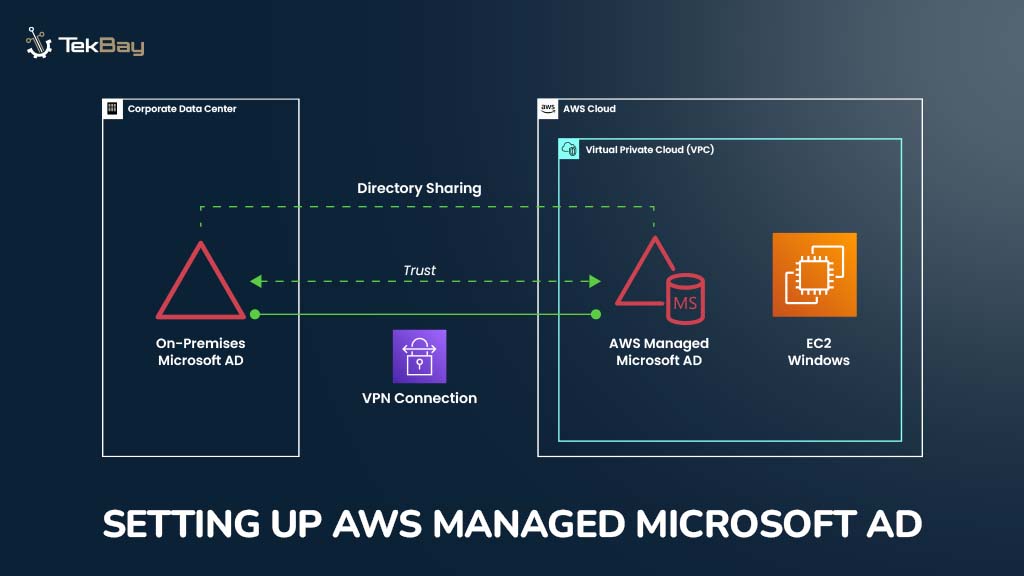
In Part 1 of our three-part blog series, “Connecting Your On-Premises Network to AWS,” we established a secure connection between the on-premises network and AWS with the Site-to-Site VPN using a Fortinet firewall and AWS Transit Gateway.
Since the network connection is done, it’s time to manage identity, access, and resources across the hybrid infrastructure.
AWS Managed AD simplifies identity management, streamlines device administration, and ensures integration between on-premises directories and cloud environments.
This is Part 2 of the three-part blog series, where we explore the powerful capabilities of AWS Managed Microsoft AD. You’ll learn how to leverage the AWS cloud to run a real Microsoft Active Directory without the need to manage local servers or infrastructure.
Why Choose AWS Managed Microsoft AD?
Managing an Active Directory (AD) environment on-premises can become complex and resource-intensive as organizations grow.
As a result, a centralized directory service is essential for user authentication, authorization, and resource management, both on-premises and in the cloud.
However, that being said, managing physical or virtual domain controllers on-site can pose several challenges:
- Infrastructure Overhead: Servers need patching, backups, and hardware maintenance, demanding dedicated resources and time.
- Scalability Concerns: As the business expands, managing increased users, devices, and applications with traditional Active Directory becomes complex, requiring additional domain controllers and costly synchronization.
- High Availability Requirements: Ensuring high availability and disaster recovery for Active Directory requires extensive planning, resources, and cost, making it difficult to manage in-house.
So, cloud-based services like AWS Managed Microsoft AD are ideal for coping with these constraints. Here are the benefits of using AWS Managed Active Directory:
- No Server Management:
AWS takes care of the infrastructure, so we can focus on users and policies rather than servers, which reduces our workload. - Scalability and Availability:
One of the standout features of AWS Managed Microsoft AD is its ability to scale effortlessly as your organization grows. It is set up in multiple Availability Zones for high availability, ensuring your Active Directory service remains operational even during failures. - Cost-Effectiveness:
Managed AD’s pay-as-you-go pricing model offers a cost-effective solution for businesses of all sizes. It allows you to avoid upfront hardware, software licenses, and maintenance investments. - Seamless Integration with AWS:
AWS Managed AD integrates smoothly with other AWS services, whether you’re managing EC2 instances, Workspaces, or other AWS resources. With Active Directory tools, you can efficiently manage users, groups, and permissions with a consistent experience across your AWS infrastructure.
Visit the official documentation of AWS Managed Microsoft AD for more information.
Steps to Configure AWS Managed Microsoft AD
Step 1: Access the AWS Directory Service Console
- Navigate to the Directory Service Console in the AWS Management Console.
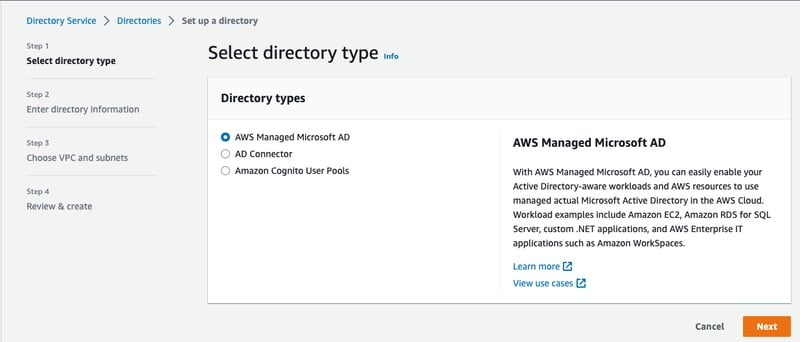
- Click on “Set up a directory” and choose “AWS Managed Microsoft AD,” then click Next.
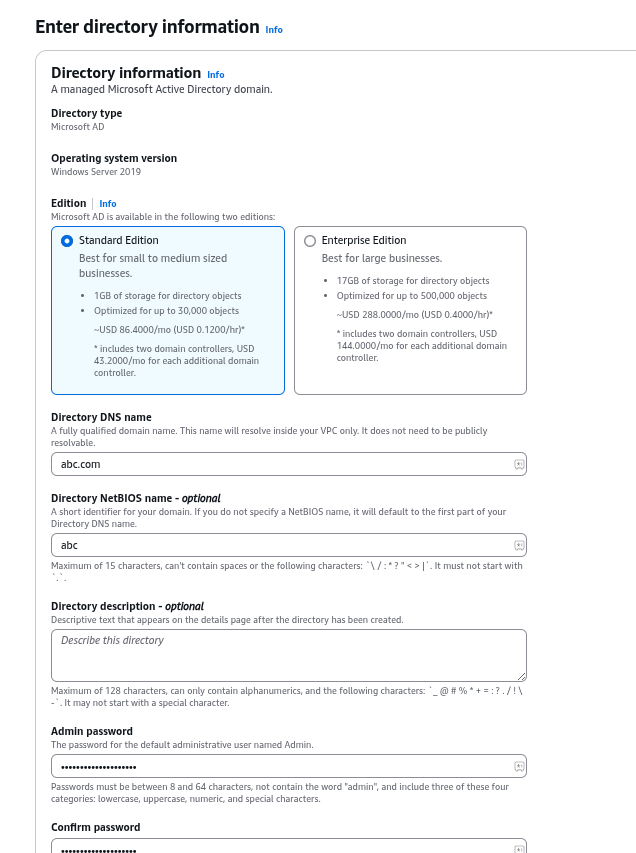
Step 2: Specify Directory Details
- Edition: Based on your needs, choose the appropriate edition (Standard or Enterprise). The Enterprise Edition supports more advanced features like trust relationships with existing on-premises domains. However, in most cases, the Standard Edition will be enough unless you have massive objects.
- Directory DNS name: Provide a fully qualified domain name (FQDN) for your directory (e.g., ABC Network – ABC.com ). This name must be unique globally.
- NetBIOS name (optional): A short name for your directory (e.g., EXAMPLE).
- Administrator password: Set a strong password for the administrator account.
Step 3: Configuring VPC Settings
- Select the VPC where you want to deploy your Managed AD.
- Ensure the VPC has appropriate subnets configured for high availability (at least two subnets in different Availability Zones).
Step 4: Review and Create
- Review the configuration details.
- Click on “Create directory.”
- The setup process typically takes 20–45 minutes. Once complete, the status will change to “Active.”
Connecting to AWS Managed AD
You can manage your Managed AD using standard Remote Server Administration Tools (RSAT) from a Windows EC2 instance or a workstation connected to your VPC.
1. Join an EC2 Instance to the Domain:
Launch a Windows EC2 instance in the same VPC as your Managed AD. Join the instance to the domain using the FQDN and administrator credentials you specified during directory creation.

2. Install RSAT: Install the appropriate RSAT tools on the EC2 instance or your workstation.
3. Manage Your AD: Use the RSAT tools (e.g., Active Directory Users and Computers, Group Policy Management) to manage users, groups, and policies in your Managed AD.
Establishing a Trust Relationship (If Needed)
If you need to connect your AWS Managed AD with your on-premises AD, you can establish a relationship of trust. This allows users in either domain to access resources in the other. This typically requires opening specific ports in your firewall and configuring DNS resolution.
Key Considerations
- DNS: Proper DNS configuration is crucial for connectivity and name resolution.
- Security Groups: Configure appropriate security groups to control network traffic to and from your Managed AD.
- Cost Management: Monitor your Managed AD usage to optimize costs.
Conclusion
AWS Managed Microsoft AD simplifies the deployment and management of Active Directory in the cloud.
Following these steps, you can quickly set up a robust and highly available directory service to support your AWS workloads and integrate with your existing on-premises infrastructure.
In the next part (Part 3), we’ll discuss using Managed AD for SSO in AWS.














