

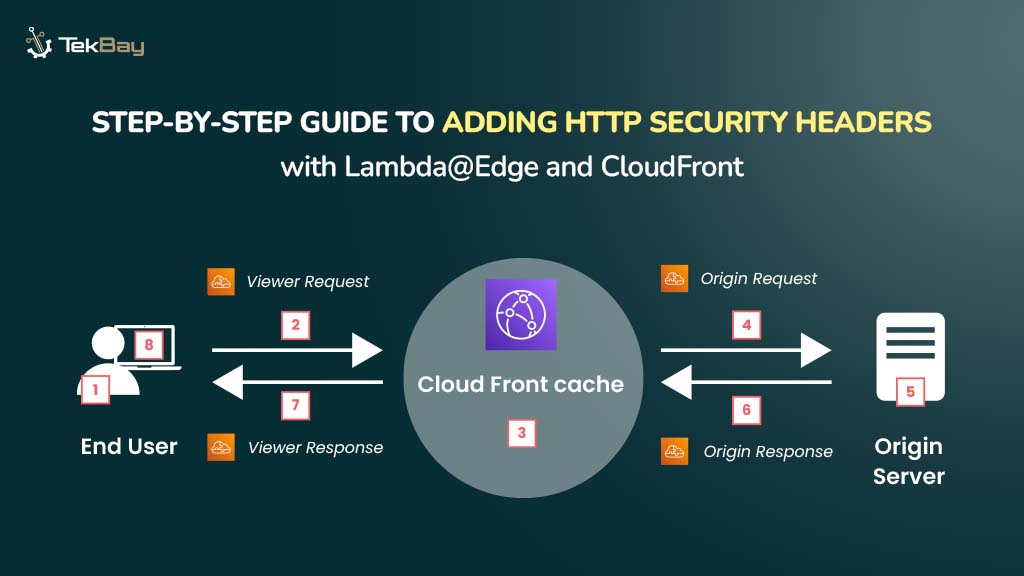
Web security has become more crucial than ever! HTTP Security Headers are your first line of defense to safeguard your website—or any online asset—from cyber threats.
These headers are part of a server’s HTTP response, instructing your browser to securely handle your site’s content. As a result, it prevents attacks like cross-site scripting (XSS), clickjacking, and data injection.
To apply these headers at scale, AWS services like AWS Lambda@Edge and CloudFront allow you to add them to your responses automatically.
Let’s learn how to implement these tools to make your website more secure with minimal effort.
Overview And Architecture: How Lambda@Edge and CloudFront Work Together
When users request content, Amazon CloudFront either serves the cached asset from its edge locations or fetches it from the origin server (such as an S3 bucket) if it’s not cached.
However, while CloudFront efficiently delivers content, it doesn’t apply essential security measures, like adding HTTP security headers.
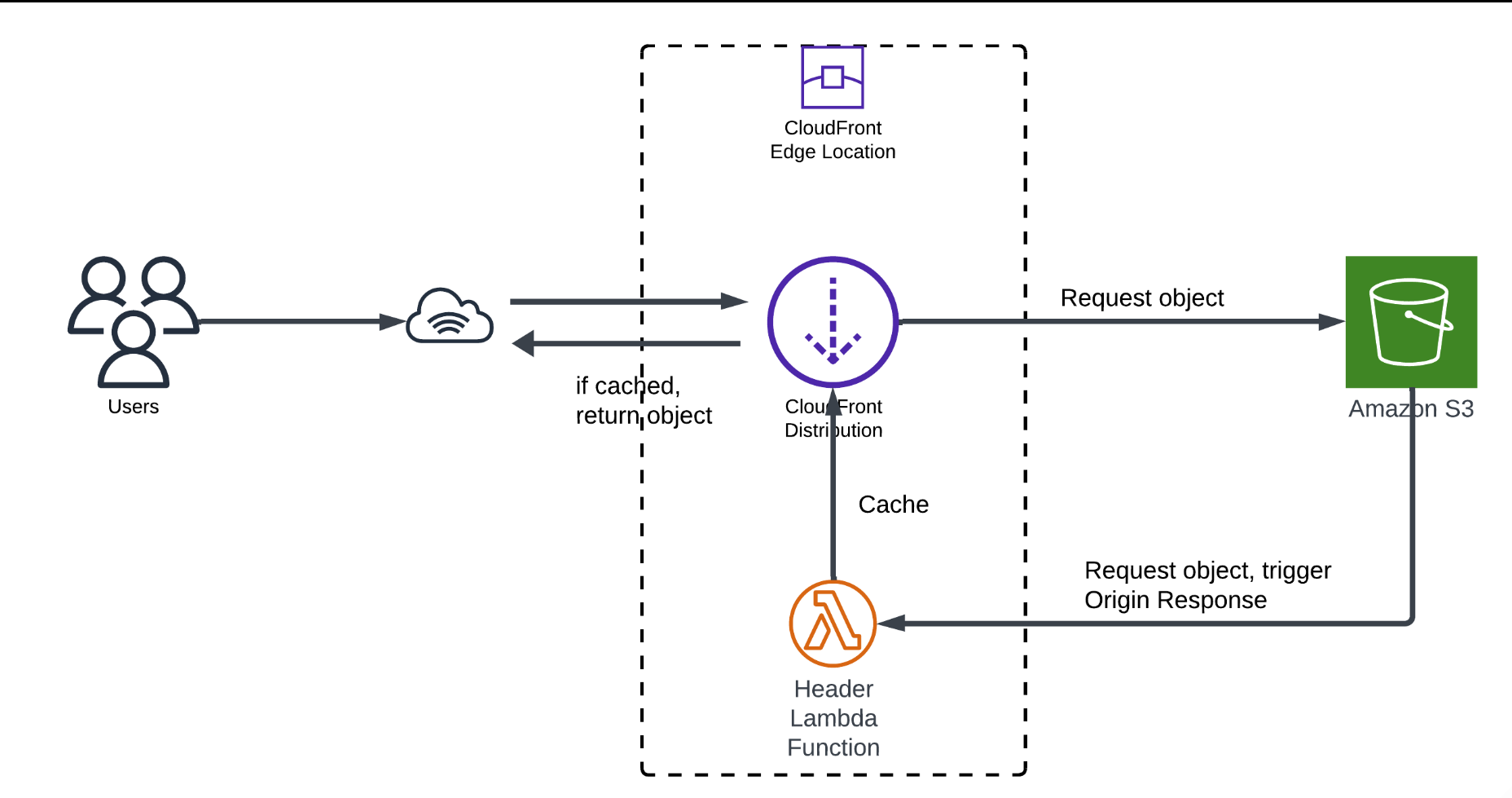
With AWS Lambda@Edge, you can modify HTTP responses before they reach the user. This enables you to add security headers like Strict Transport Security (HSTS), Content Security Policy, and X-XSS Protection.
For instance, the X-XSS-Protection header helps prevent cross-site scripting (XSS) attacks by blocking pages if suspicious scripts are detected.
This approach enhances security, reduces latency, and improves system efficiency without compromising the user experience.
For more information, read Lambda@Edge documentation and Amazon CloudFront documentation.
Prerequisites
- An Amazon S3 bucket hosting your website.
- A CloudFront distribution configured to serve content from the S3 bucket.
- AWS Lambda access with permission to create functions.
Steps to Add Security Headers Using Lambda@Edge and CloudFront
Step 1: Create a Lambda Function
- Open the AWS Console, search for “Lambda”, and click on it to access the Lambda Console.
- You must use the US East (N. Virginia) region (us-east-1) because Lambda@Edge functions can only be created here.
- Click ‘Create function.’
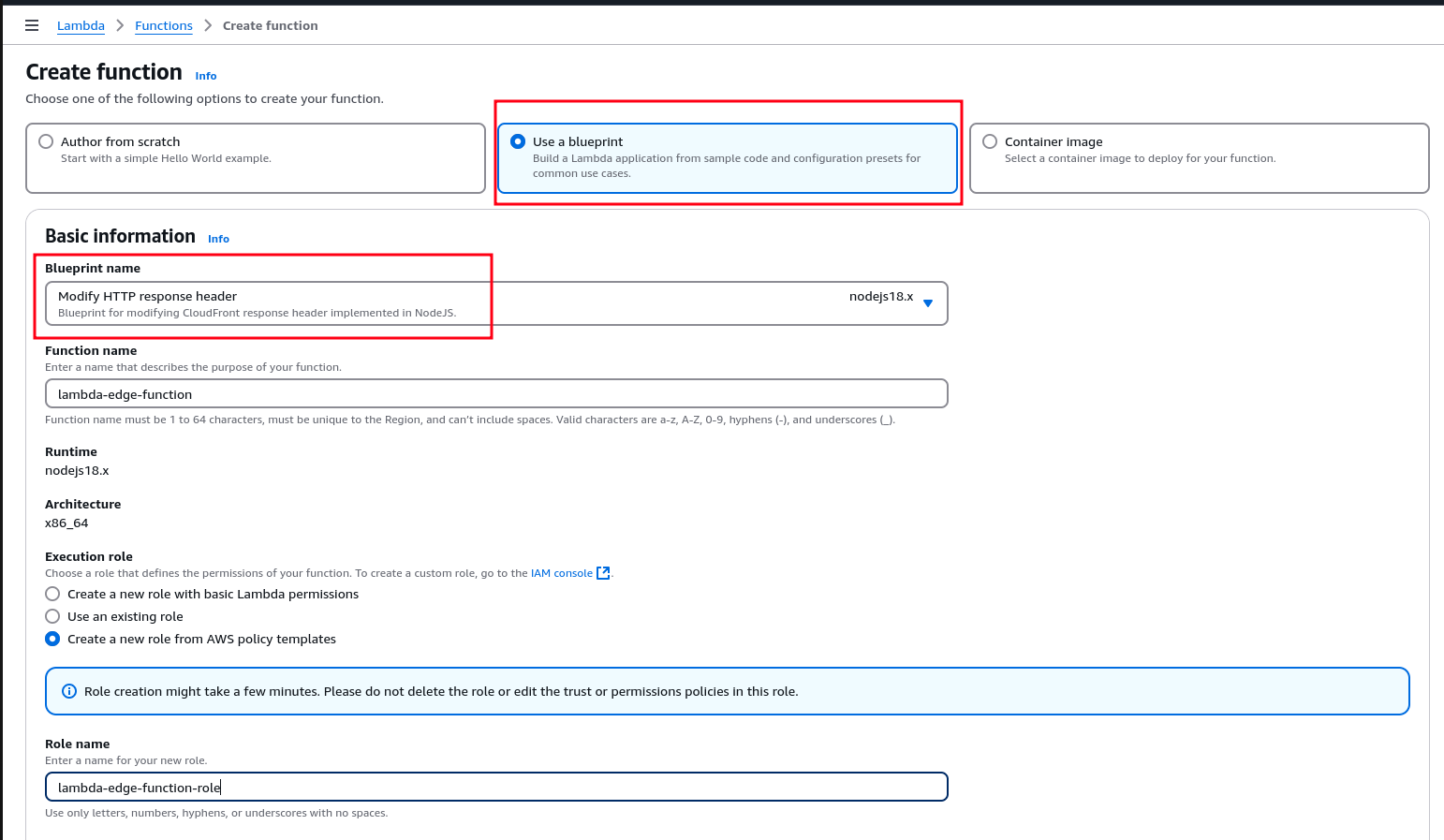
- Select “Use a blueprint” and choose an appropriate template (or Blank function if you prefer to start from scratch).
- Name your function something meaningful (we have named lambda-edge-function in this guide).
- Select Node.js 16.x as the runtime.
- Under Permissions, choose Create a new role with basic Lambda permissions to handle required access.
- Click Create to finalize the Lambda setup.
Step 2: Implement the Security Header
Now that the Lambda function is created, we will write the code to add security headers to the responses from the CloudFront distribution.
- In your Lambda console, scroll down to the Code source section, where you will see the default code for your function.
- Replace the contents of index.js with the following:
'use strict';

export const handler = async (event) => {
    // Get contents of response
    const response = event.Records[0].cf.response;
    const headers = response.headers;

    // Set new headers
    headers['strict-transport-security'] = [{ key: 'Strict-Transport-Security', value: 'max-age=63072000; includeSubdomains; preload' }];
    headers['content-security-policy'] = [{ key: 'Content-Security-Policy', value: "default-src 'none'; img-src 'self'; script-src 'self'; style-src 'self'; object-src 'none'" }];
    headers['x-content-type-options'] = [{ key: 'X-Content-Type-Options', value: 'nosniff' }];
    headers['x-frame-options'] = [{ key: 'X-Frame-Options', value: 'DENY' }];
    headers['x-xss-protection'] = [{ key: 'X-XSS-Protection', value: '1; mode=block' }];
    headers['referrer-policy'] = [{ key: 'Referrer-Policy', value: 'same-origin' }];

    // Return modified response
    return response;
};- After pasting the code, click Deploy to save your changes.
Step 3: Test the Lambda Function
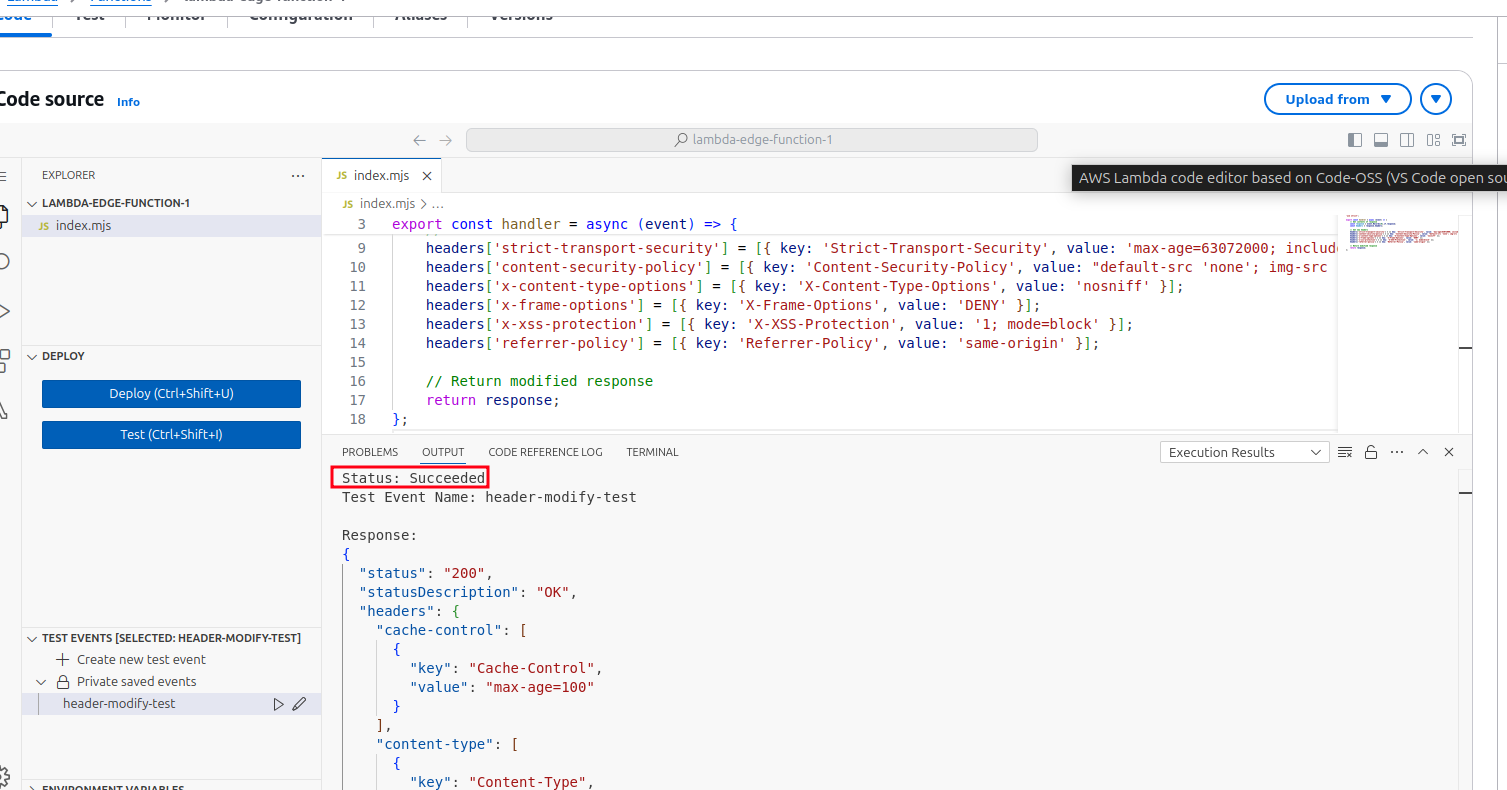
It’s a good practice to test your Lambda function before deploying it to CloudFront to ensure it works correctly.
- Go to the Lambda Console and click Test to create a new test event.
- Name your test event and paste the following sample data into the Event JSON section:
{
  "Records": [
    {
      "cf": {
        "config": {
          "distributionId": "EXAMPLE123"
        },
        "request": {
          "uri": "/index.html",
          "method": "GET",
          "headers": {
            "host": [
              {
                "key": "Host",
                "value": "example.cloudfront.net"
              }
            ]
          }
        },
        "response": {
          "status": "200",
          "statusDescription": "OK",
          "headers": {
            "cache-control": [
              {
                "key": "Cache-Control",
                "value": "max-age=100"
              }
            ],
            "content-type": [
              {
                "key": "Content-Type",
                "value": "text/html"
              }
            ]
          }
        }
      }
    }
  ]
}
- After entering the test data, click Test to execute the Lambda function with the provided event.
- After the test runs, check the Execution result section for any errors or issues.
Step 4: Attach Lambda to CloudFront
Attaching the Lambda function to CloudFront ensures that security headers are added to every response that CloudFront sends to the client.
- In the AWS Management Console, navigate to the Lambda function you created earlier.
- Click on the Add trigger button located at the top of the dashboard.
- From the list of available trigger sources, choose CloudFront.
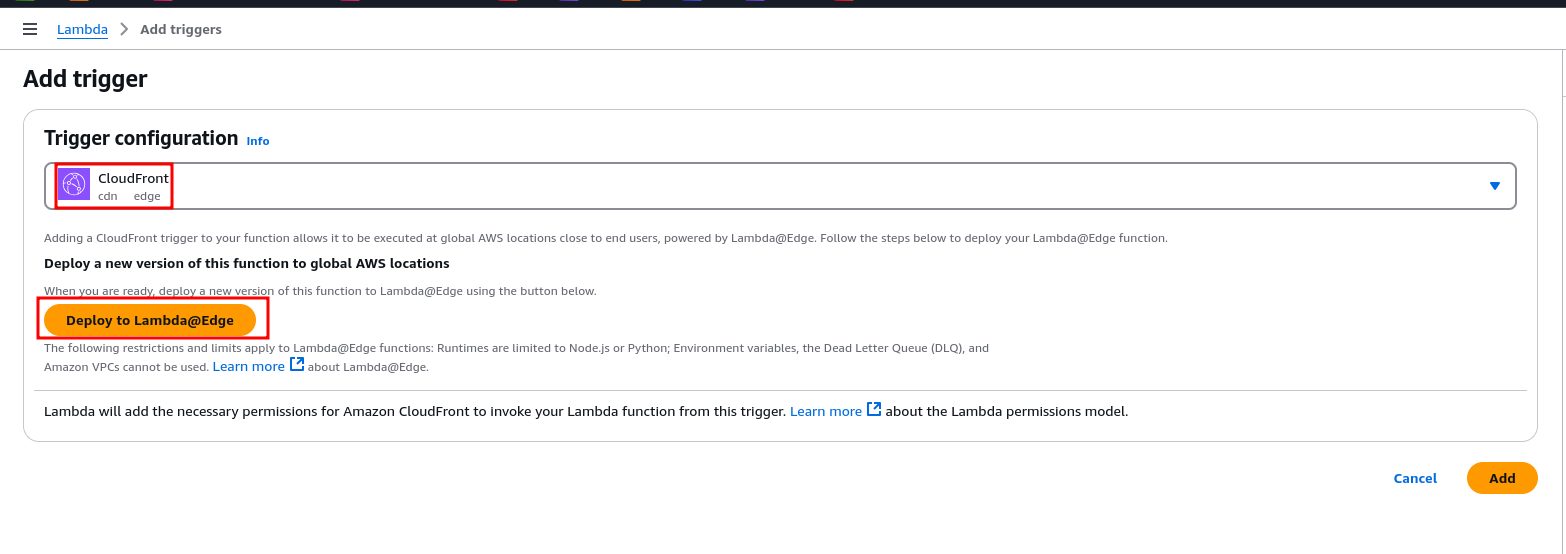
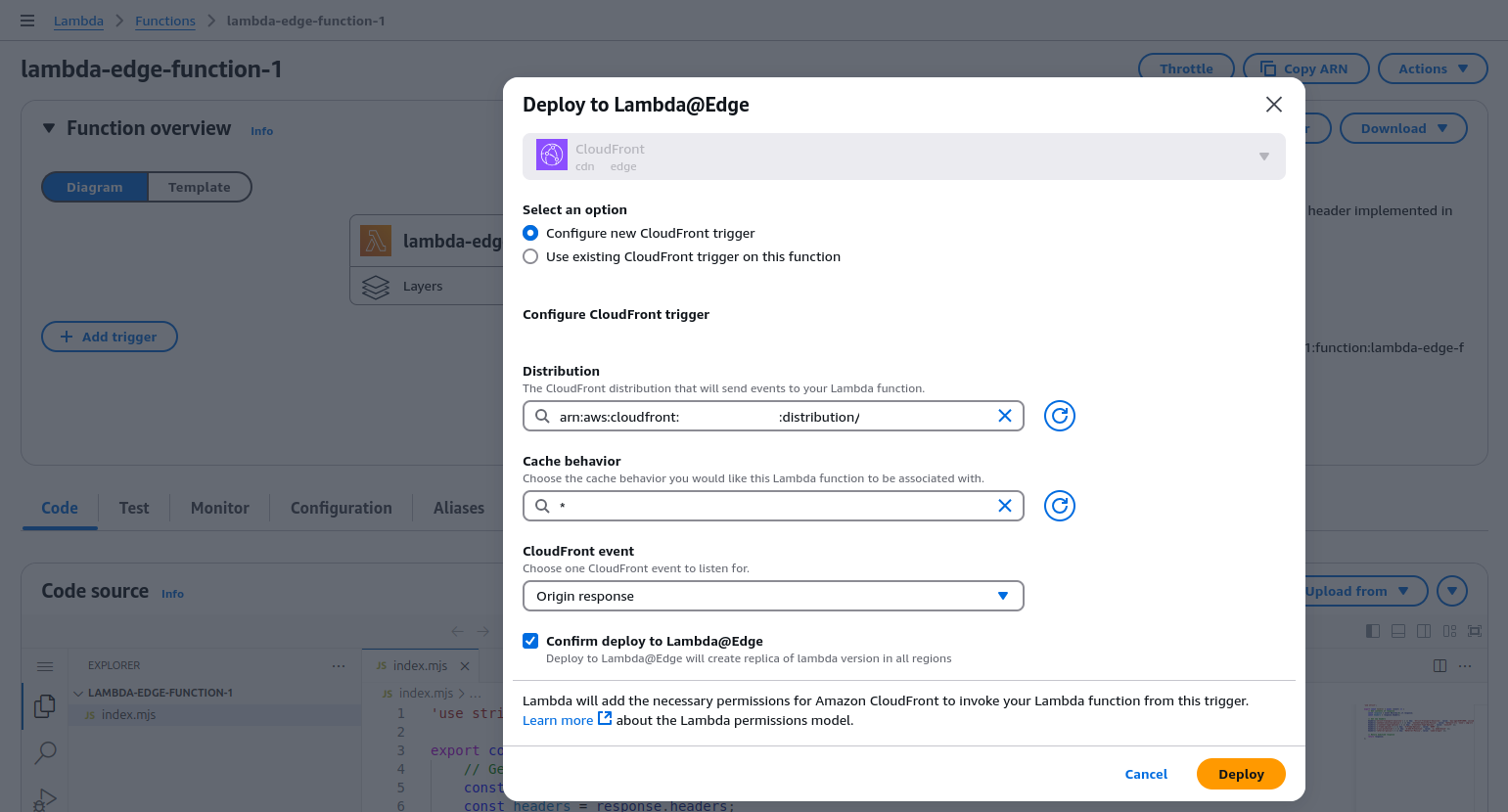
- You’ll need to choose the CloudFront distribution that is serving your website.
- Set Cache Behavior to ensure the Lambda function applies to all paths and resources your CloudFront distribution serves.
- Set the event type to Origin Response. This means the Lambda function will execute every time CloudFront receives a response from your origin server.
- Enable ‘Replicate across regions‘ to ensure the function is executed at all CloudFront edge locations.
- Once you’ve configured the settings, click Add to save the trigger configuration.
Step 5: Deploy and Verify Changes
- Wait for CloudFront to deploy the updated configuration (~2-7 minutes).
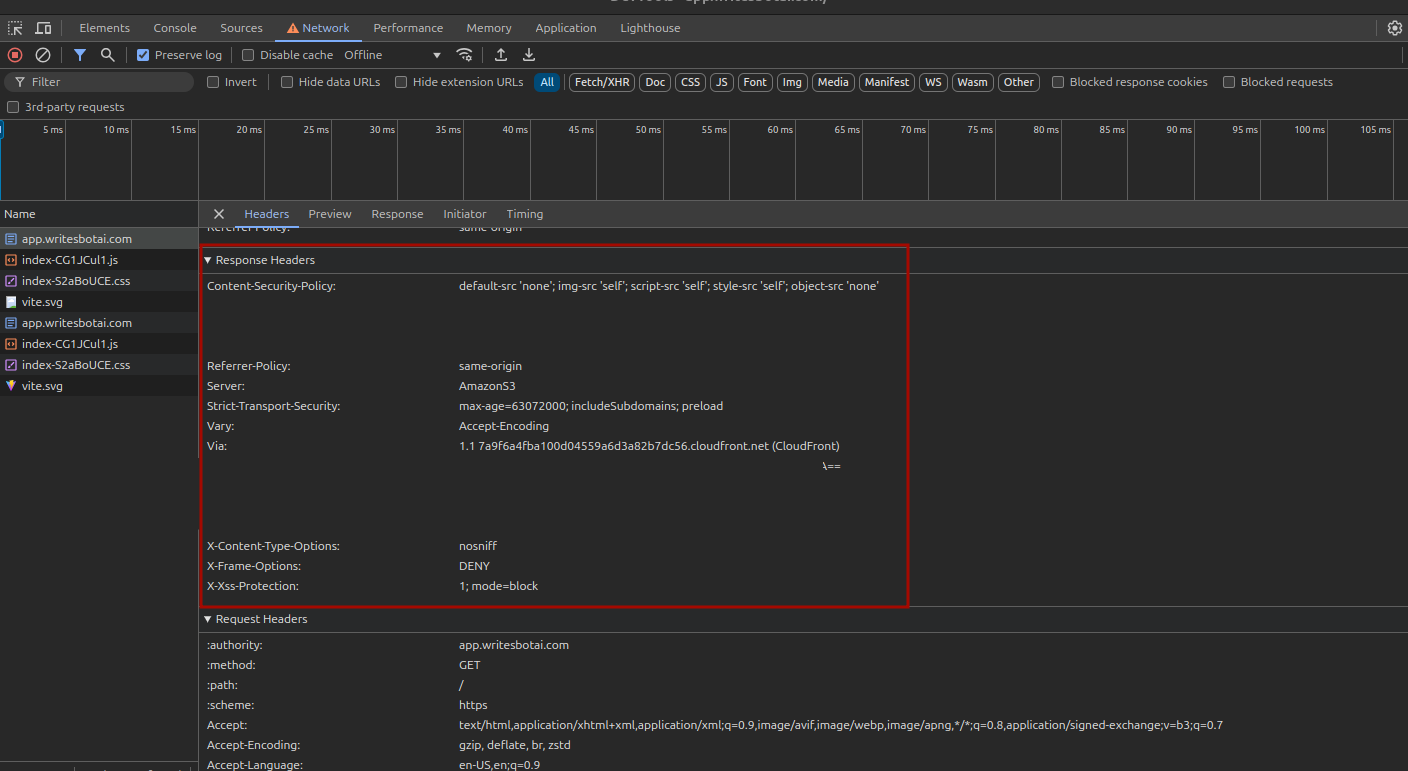
- Open your website in a browser and then navigate to the Network tab in the Developer Tools.
- Reload the page and inspect the response headers you added.
Step 6: Test Your Security Headers
You can use the Mozilla Observatory tool to ensure the headers are correctly applied.
- Visit Mozilla Observatory.
- Enter your website URL and run a scan.
- After the scan, ensure key security headers (e.g., Strict-Transport-Security, Content-Security-Policy) are present and review the security rating for proper protection.
Monitoring and Debugging
Once the Lambda function is deployed, monitoring and ensuring it’s working as expected is essential.
- Check Amazon CloudWatch Logs for Lambda function execution details.
- Verify CloudFront distribution status (should be Deployed).
- Ensure Lambda is executed on Origin Response events.
- Debug Content Security Policy (CSP) issues by inspecting blocked requests in browser Developer Tools.
- Modify the Content-Security-Policy header as needed to allow necessary resources while maintaining security.
- Create an Invalidation in the CloudFront Console to clear cached content and apply updated headers.

Note: Invalidating everything (/*) can be expensive if done frequently. It’s better to target only specific changed files when possible.
Conclusion
By configuring AWS Lambda@Edge with CloudFront to inject HTTP security headers, the website’s defenses against a range of cyber threats have been significantly bolstered.
These headers are essential in safeguarding user data, preventing attacks like cross-site scripting (XSS), and ensuring a secure browsing experience.
To maintain optimal security, it is crucial to monitor CloudWatch logs regularly, test header performance using tools such as Mozilla Observatory, and fine-tune security policies as needed.
Additionally, efficiently managing CloudFront cache invalidations ensures that changes are quickly applied.














