

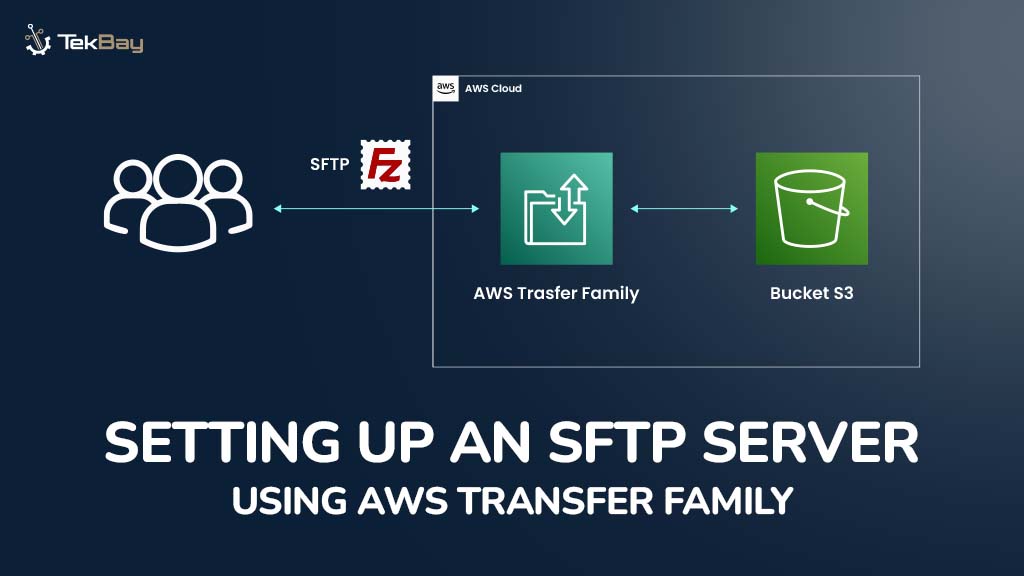
AWS Transfer Family is a fully managed service that organizations use to securely transfer files over the internet, using standard protocols like SFTP, FTPS, and FTP. It also integrates those transfers with cloud storage like Amazon S3 or Amazon EFS.
In simple terms, it makes transferring files to the cloud easy and secure, allowing companies to modernize their old systems without losing security or flexibility.
Why Integrate SFTP With AWS Transfer Family?
The Secure File Transfer Protocol (SFTP) is a method for securely transferring files between a client and a server via an encrypted connection.
Since managing an SFTP server can be complex and time-consuming in cloud computing, a fully managed SFTP service like AWS Transfer Family simplifies the process by handling server setup, maintenance, and security for you.
Integrating AWS Family into the architecture provides a hassle-free approach to a secure file transfer system without worrying about technicalities.
You can get a seamless and fully managed way to handle file exchanges and leverage AWS’s powerful, scalable storage and monitoring capabilities, like Amazon S3.
Overview
This blog will provide a step-by-step approach for setting up an SFTP server using the AWS Transfer family. We will also learn how to add users, configure user access, and seamlessly manage file transfers during integration.
Streamline your file management while benefiting from AWS’ scalable and secure infrastructure, including Amazon S3 SFTP integration.
Prerequisite
- An active AWS account with appropriate permissions.
- An Amazon S3 bucket/ Amazon EFS to store transferred files.
- A domain name (optional) if using a custom hostname.
- Basic knowledge of SFTP and file transfer protocols.
Procedure
Step 1: Create Your AWS Transfer Family SFTP Server
- Sign in to the AWS Management Console.
- Navigate to the AWS Transfer Family Console and click ‘Create Server.’
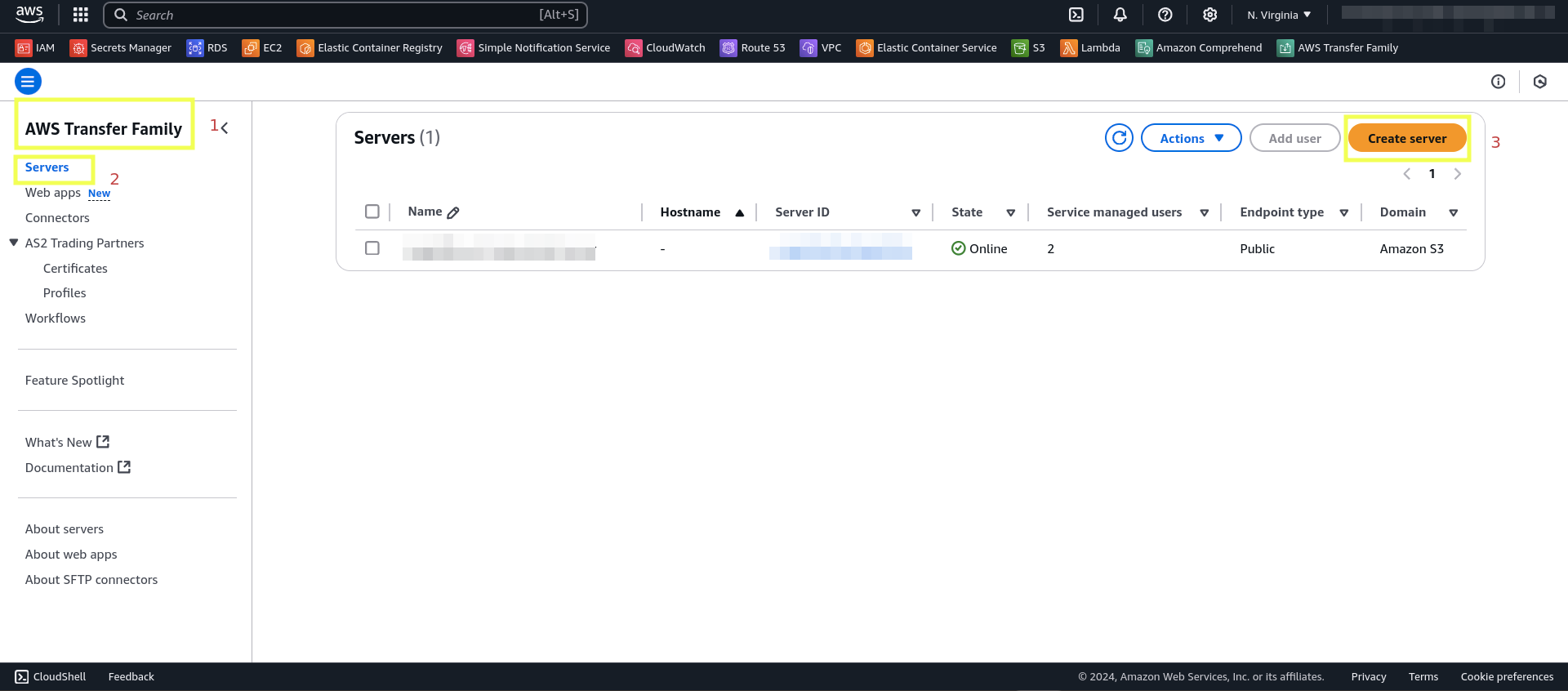
- Now, you will be directed to another tab. Choose SFTP as the protocol.

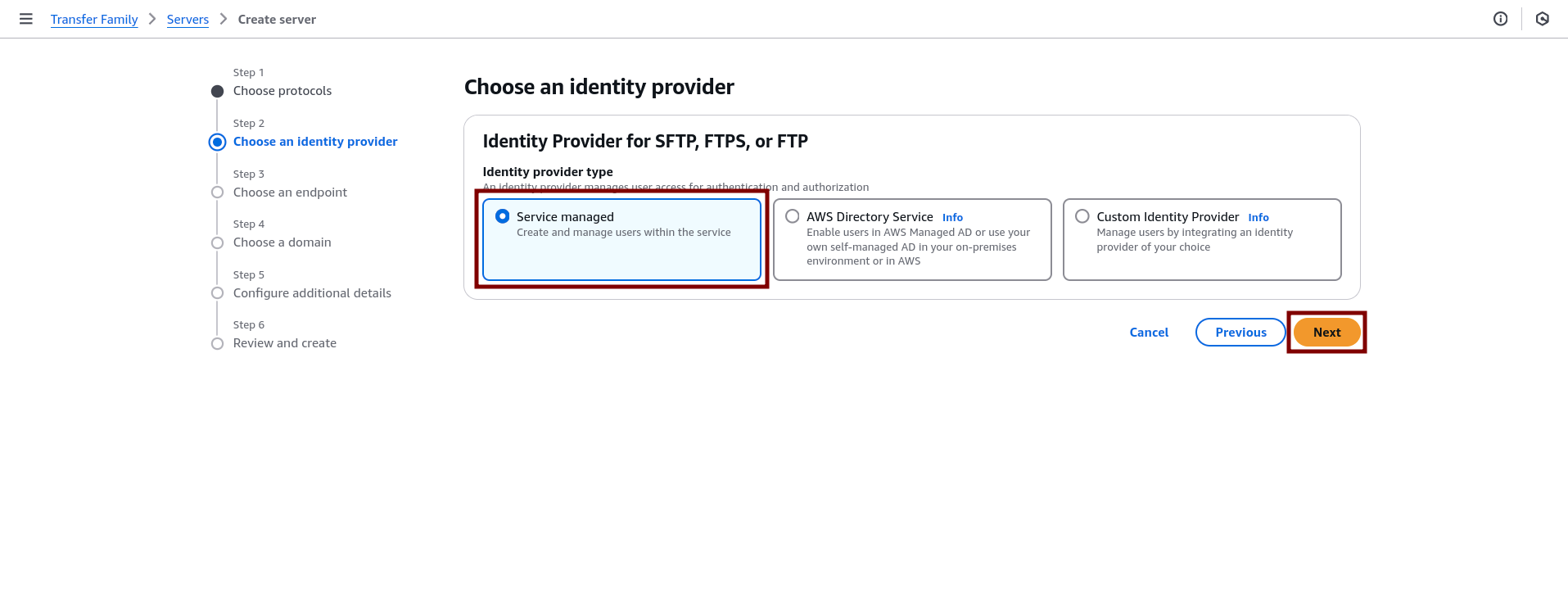
- Choose an appropriate identity provider. In this demo, we have selected “Service managed,” which offers the option to create and manage users within the service.
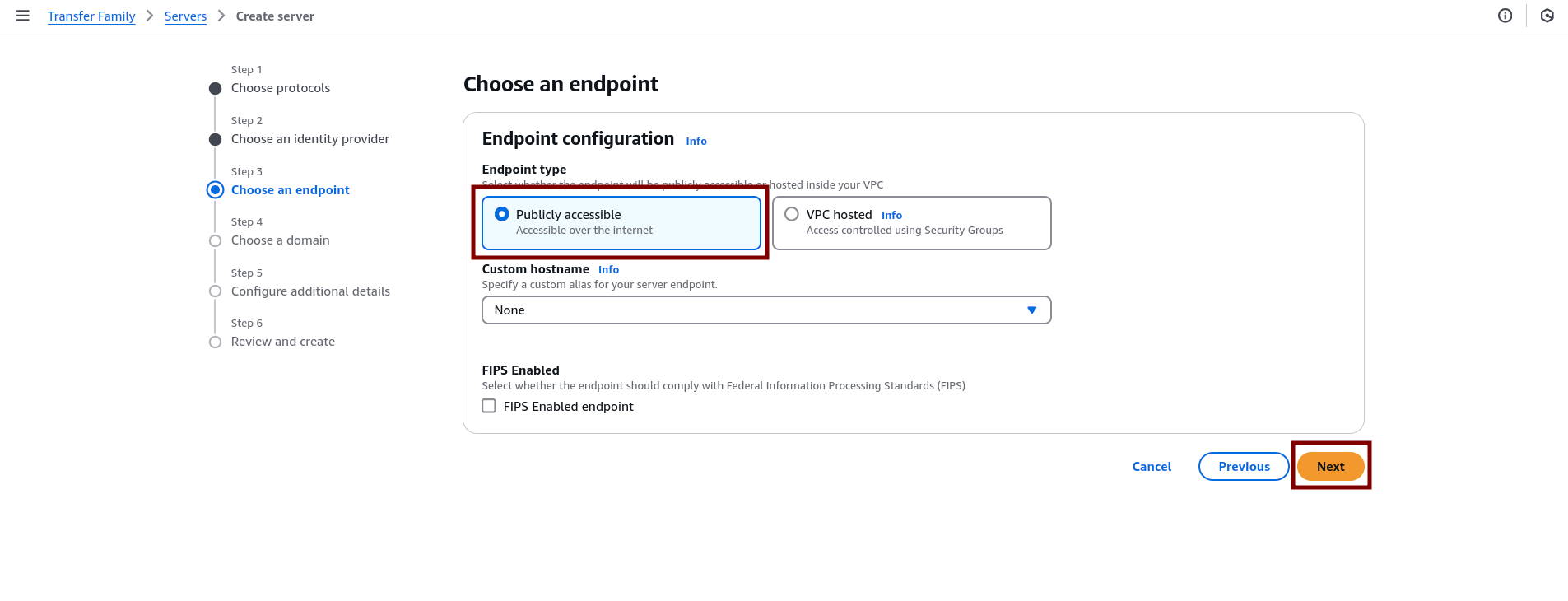
In the next step, you need to choose an endpoint, and we have selected “Publicly accessible.”
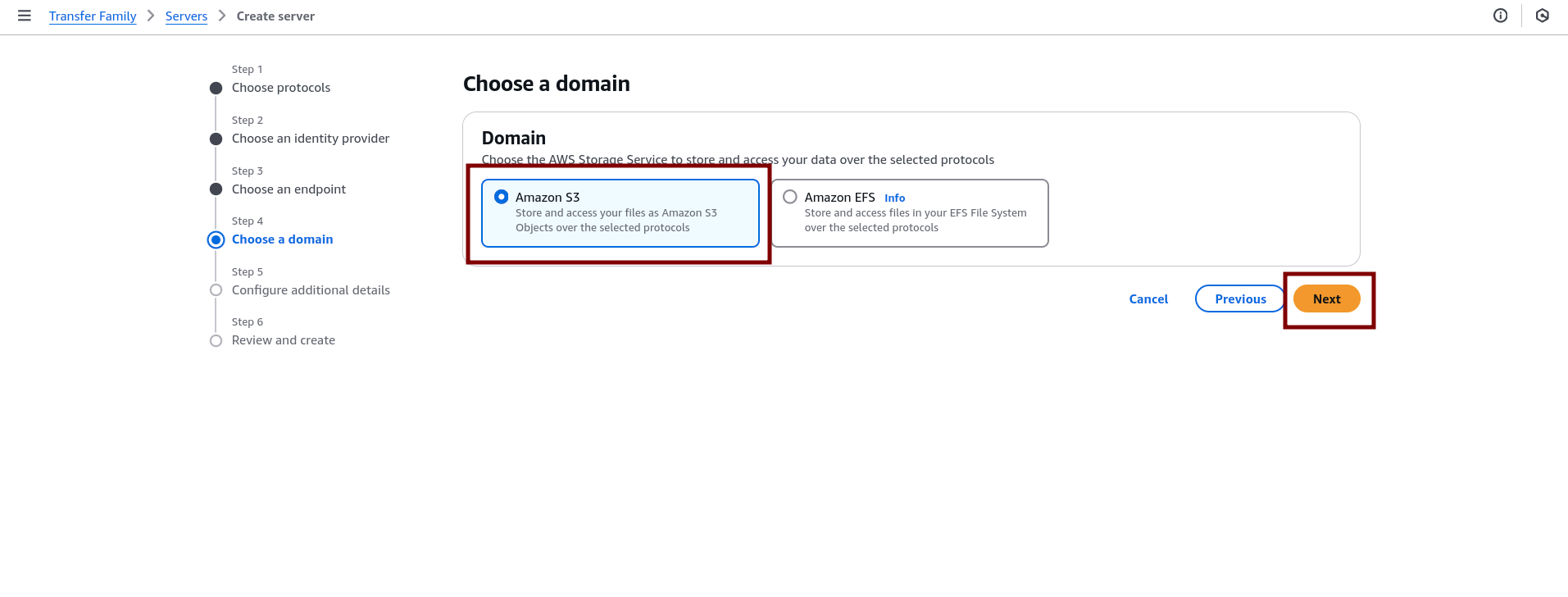
- Now, choose a server domain to store and access your data. We will use the cloud storage service Amazon S3.
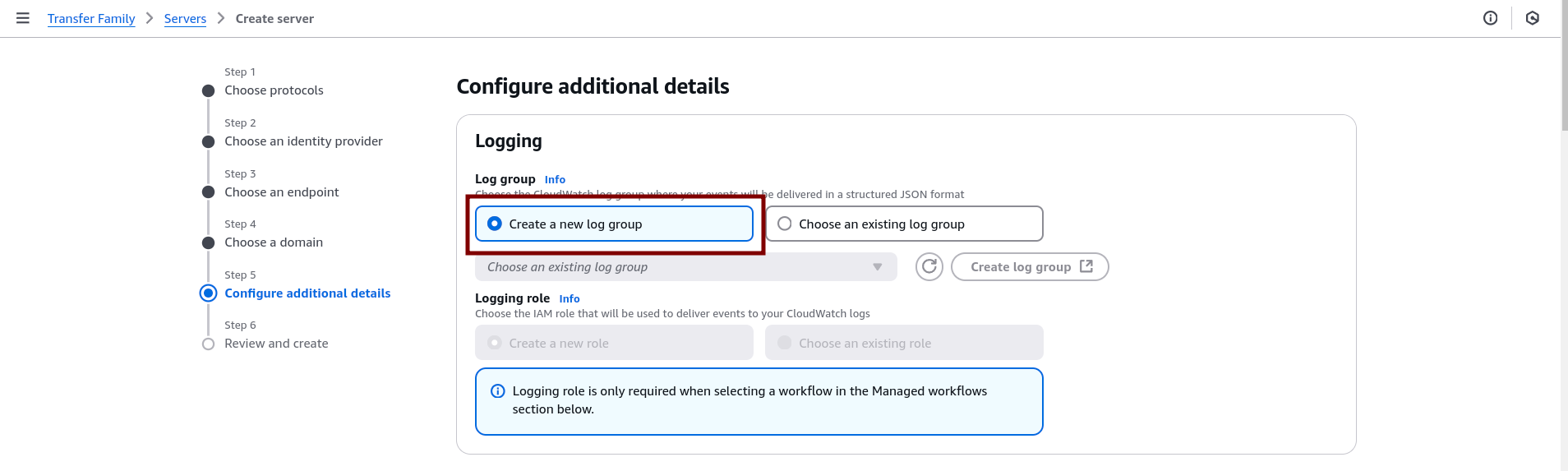
- We will configure logging in the additional settings and create a new log group.
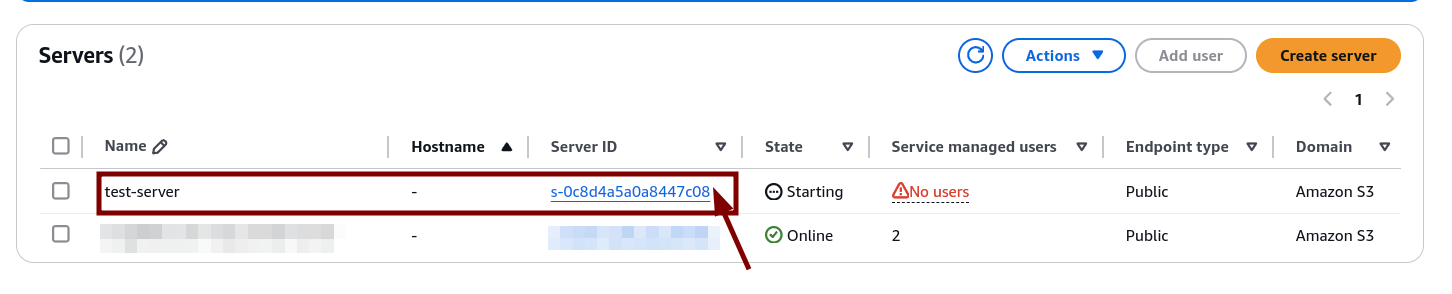
- Click on “Review and create,” and you have successfully created an SFTP Server in the AWS Family Transfer.
Step 2: Configuring User and User Access
- In the AWS Transfer Family Console, go to your newly created server.
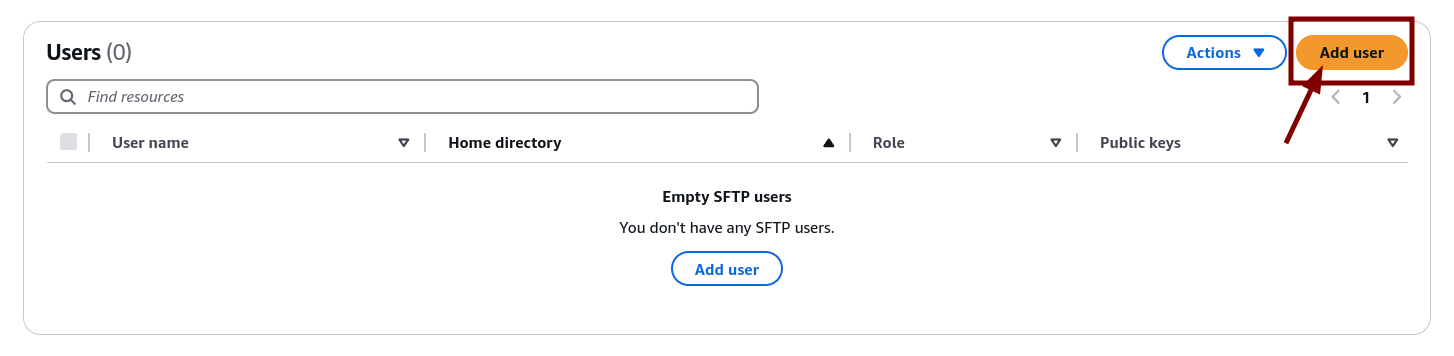
- Navigate to the Users tab and click on “Add user.”
- Provide a username.
- You will need to assign an IAM role with the S3 Put and Get policy to allow users to access the S3 bucket. Here is an example of an IAM policy:
{
  "Version": "2012-10-17",
  "Statement": [
    {
      "Effect": "Allow",
      "Action": [
        "s3:GetObject",
        "s3:PutObject",
        "s3:DeleteObject",
        "s3:ListBucket"
      ],
      "Resource": [
        "arn:aws:s3:::YourBucketName",
        "arn:aws:s3:::YourBucketName/*"
      ]
    }
  ]
}
- Choose an S3 bucket as the home directory to store and track user login data.
- Generate SSH keys for authentication: associate the SSH public key with the user, keep the private key securely on your local machine, and add the user.
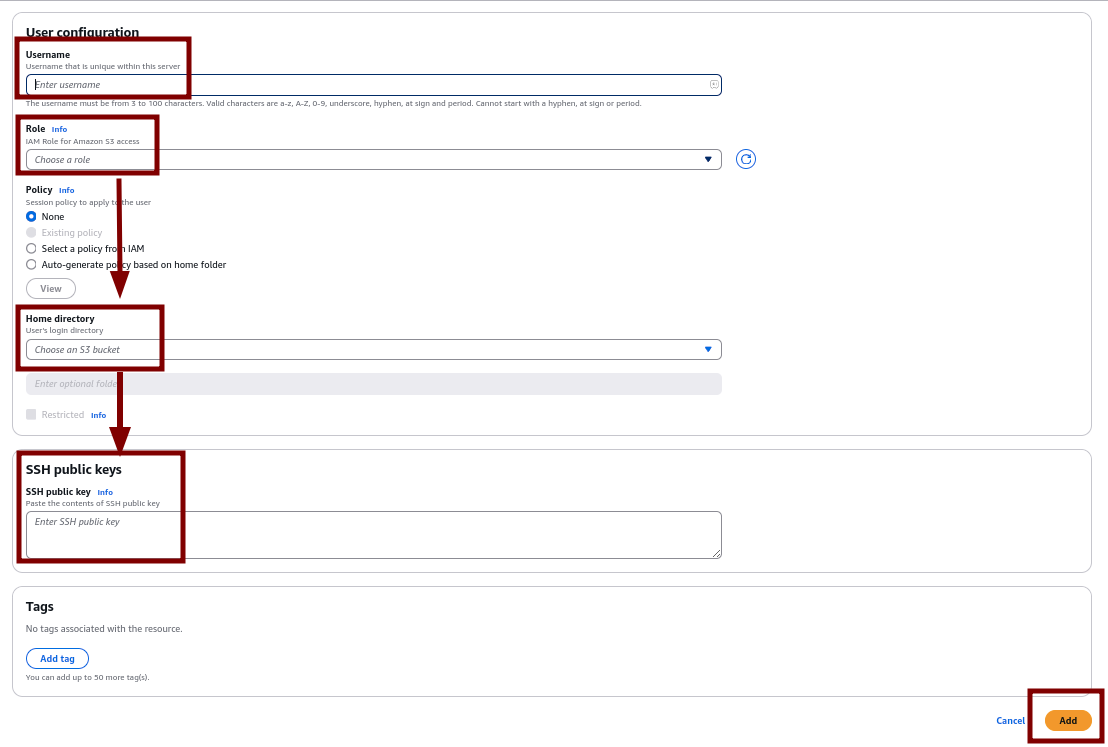
- Save the user configuration.
Step 3: Connecting to the SFTP Server
- Test the connection using an SFTP client like FileZilla, WinSCP, or a command-line tool with the codes given below. You need to provide the server endpoint, username, and private key.
sftp -i /path_to_private_key user_name@server_endpoint
cd /s3_bucket_name/directory
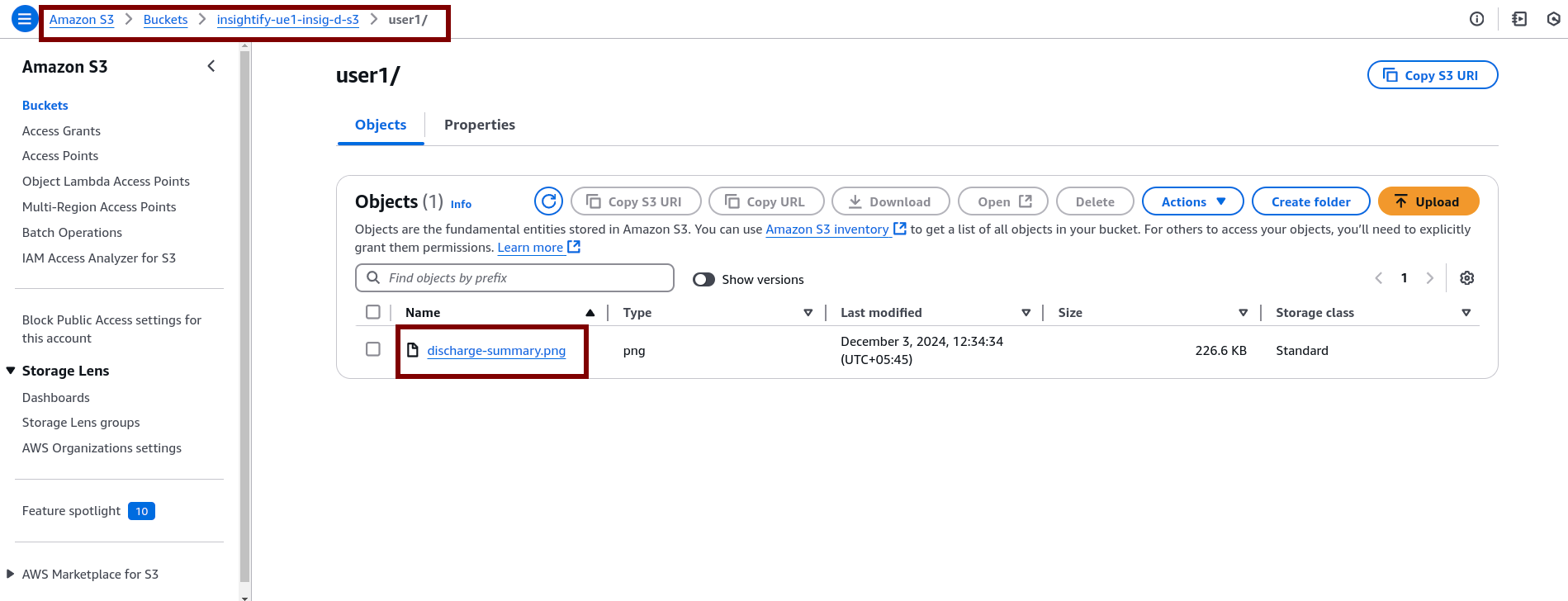
put doc_name- Verify file uploads and downloads to and from the S3 bucket.

Step 4: Monitoring and Managing
Enabling logging allows you to monitor your AWS Transfer Family SFTP server for proactive Issue resolution, enhance security, and achieve operational efficiency.
Use Amazon CloudWatch Logs to monitor file transfers and server activity. In the AWS Console, navigate to CloudWatch> Logs> Log Groups in the side panel.
To stay proactive, you can also set up CloudWatch Alarms, which notify you about critical server events.

Conclusion
Setting up an SFTP server with AWS Transfer Family is an easy and effective way to simplify file transfers using cloud capabilities.
By integrating scalable AWS services like Amazon S3 or EFS, businesses can enhance workflows, improve data protection, and meet compliance needs, all while reducing the complexity of managing on-premises solutions.
With features like CloudWatch monitoring, IAM-based access control, and user-friendly management options, AWS Transfer Family helps organizations boost operational efficiency and build a secure, scalable infrastructure ready for future growth.














