

Recruiters and hiring teams often handle hundreds of applications through LinkedIn. While LinkedIn Recruiter and similar premium tools offer built-in options for downloading resumes in bulk, not every team or hiring scenario operates within that ecosystem.
When that’s the case, manually downloading resumes one by one quickly becomes a tedious and time-consuming task. Rather than spending hours on repetitive actions, you can automate the process with a Python script.
This blog provides a step-by-step guide on using Python to automate the bulk downloading of resumes from LinkedIn.
A Problem Scenario
Imagine you’re a recruiter managing 200+ applications for a single job post on LinkedIn. You open the platform, begin reviewing candidates, and soon realize there’s no simple way to download all the resumes at once—unless you’re using premium features.
Without access to tools like LinkedIn Recruiter, you’re stuck in a repetitive loop:
- Open an applicant’s profile
- Click “Download Resume.”
- Save it manually
- Repeat… over and over again
This process can take up a lot of time that could be better spent evaluating candidates or coordinating interviews. For teams managing multiple roles or large volumes of applicants, the inefficiency is compounded.
The Solution: Automating with Python
With a Python script, you can automate the entire process of downloading resumes from LinkedIn job applications.
This automated approach eliminates manual actions, allowing you to focus on what really matters—finding and hiring the best candidates—while the script handles the tedious task of resume collection.
Prerequisites For Automation Script Setup
You’ll need to go through a few initial setup steps to automate resume downloads. Here’s how to prepare your environment:
1. Install Necessary Tools
Before running the script, ensure you have the following installed:
- Python 3.x (Download here).
- Google Chrome (Not mandatory, but this guide uses Chrome. If you’re using a different browser, see the section below for setup instructions.)
Install necessary dependencies by running the following command in your terminal or command prompt:
pip install selenium webdriver-manager2. Additional Setup
a) For Google Chrome:
No manual setup required for Chrome, as the ChromeDriver will be managed automatically via webdriver-manager.
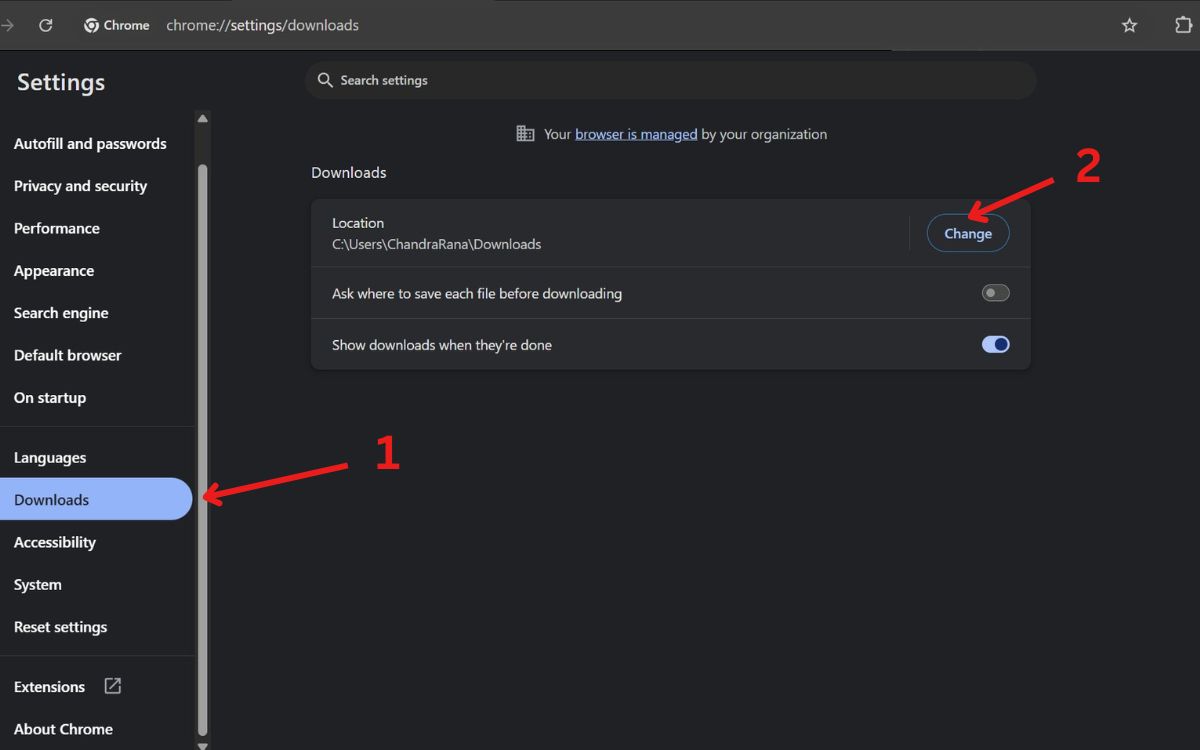
However, it is recommended to set Chrome’s default download directory to ensure the resumes are downloaded to a specific folder:
- Open Chrome → Settings → Downloads.
- Under Location, click Change and select your desired folder as shown in the figure below.
- Disable the option “Ask where to save each file before downloading” to allow the script to download files automatically.
b) For Other Browsers (Firefox or Edge):
If you’re using Firefox or Edge, replace the ChromeDriver setup in the script with the appropriate WebDriver setup:
# For Firefox
from selenium.webdriver.firefox.service import Service as FirefoxService
from selenium.webdriver.firefox.options import Options as FirefoxOptions

options = FirefoxOptions()
options.set_preference("browser.download.dir", "C:/path/to/your/download/folder")  # Set download location
driver = webdriver.Firefox(service=FirefoxService(), options=options)

# For Edge
from selenium.webdriver.edge.service import Service as EdgeService
from selenium.webdriver.edge.options import Options as EdgeOptions

options = EdgeOptions()
options.add_argument("download.default_directory=C:/path/to/your/download/folder")  # Set download location
driver = webdriver.Edge(service=EdgeService(), options=options)
3) Get the LinkedIn Job URL
- Log in to your LinkedIn Recruiter account.
- Navigate to Jobs → Select your job posting.
- Click on View Applicants to view the list of candidates.
- Copy the URL from the browser’s address bar. The URL should look like this:
https://www.linkedin.com/hiring/jobs/{job_id}/applicants/{applicant_id}/detail/
Additional Important Notes:
- Your LinkedIn must be logged in on Chrome before running the script.
- Chrome must be closed before running the script.
Running the Script For Automated Resume Downloads
Now that the setup is complete, it’s time to run the script and automate the resume download process. Here’s how you can get started:
Step 1: Create and Save the Script File
Create a new Python file named linkedin_resume_downloader.py and copy the following script into it:
import os
from selenium import webdriver
from selenium.webdriver.common.by import By
from selenium.webdriver.chrome.service import Service
from selenium.webdriver.common.action_chains import ActionChains
from selenium.webdriver.support.ui import WebDriverWait
from selenium.webdriver.support import expected_conditions as EC
from webdriver_manager.chrome import ChromeDriverManager
import time
# --- Configurations ---
CHROME_PROFILE_PATH = r'Your_Chrome_Profile_Path'  # Update this with your Chrome User Data path
PROFILE_NAME = 'Your_Chrome_Profile_Name'  # Example: 'Default' or 'Profile 1'
JOB_URL = "Your_Job_Applicants_URL"  # Paste the copied URL here
APPLICANTS_PER_PAGE = 25  # Adjust if pagination differs
# --- Initialize Selenium WebDriver ---
options = webdriver.ChromeOptions()
options.add_argument(f"--user-data-dir={CHROME_PROFILE_PATH}")  # Use your Chrome user data folder
options.add_argument(f"--profile-directory={PROFILE_NAME}")  # Use your logged-in profile
# Set up the Chrome WebDriver with the correct profile
options.add_experimental_option("prefs", {"download.default_directory": "Your_Download_Folder_Path"})
driver = webdriver.Chrome(service=Service(ChromeDriverManager().install()), options=options)
wait = WebDriverWait(driver, 15)
def scrape_resumes():
    print("Opening LinkedIn job page...")
    driver.get(JOB_URL)
    time.sleep(5)
    resume_list = []
    page = 0
    while True:
        print(f"Scraping page {page + 1}...")
        try:
            applicant_list = wait.until(
                EC.presence_of_element_located((By.CLASS_NAME, "artdeco-list"))
            )
            applicants = applicant_list.find_elements(By.TAG_NAME, "li")
            if len(applicants) == 0:
                break
            for applicant in applicants:
                try:
                    ActionChains(driver).move_to_element(applicant).perform()
                    time.sleep(0.5)
                    applicant.click()
                    time.sleep(2)
                    resume_link = wait.until(
                        EC.presence_of_element_located((By.XPATH, "//a[contains(@aria-label, 'resume')]")
                    )
                    resume_url = resume_link.get_attribute("href")
                    if resume_url in resume_list:
                        continue
                    resume_list.append(resume_url)
                    driver.get(resume_url)
                    time.sleep(3)
                except Exception as e:
                    print(f"Error downloading resume: {e}")
                    continue
            next_start = (page + 1) * APPLICANTS_PER_PAGE
            next_page_url = f"{JOB_URL}&start={next_start}"
            driver.get(next_page_url)
            time.sleep(5)
            page += 1
        except Exception as e:
            print(f"Finished scraping: {e}")
            break
    print("Finished downloading resumes")
try:
    scrape_resumes()
finally:
    driver.quit()
Step 2: Modify Configuration Settings
Before running the script, you need to customize it with your specific details:
- CHROME_PROFILE_PATH: The path to your Chrome user profile.
- PROFILE_NAME: The name of your Chrome profile (e.g., “Default” or “Profile 1”).
- JOB_URL: The URL of your LinkedIn job applicants page.
Where To Find Your Chrome Profile Path and Name?
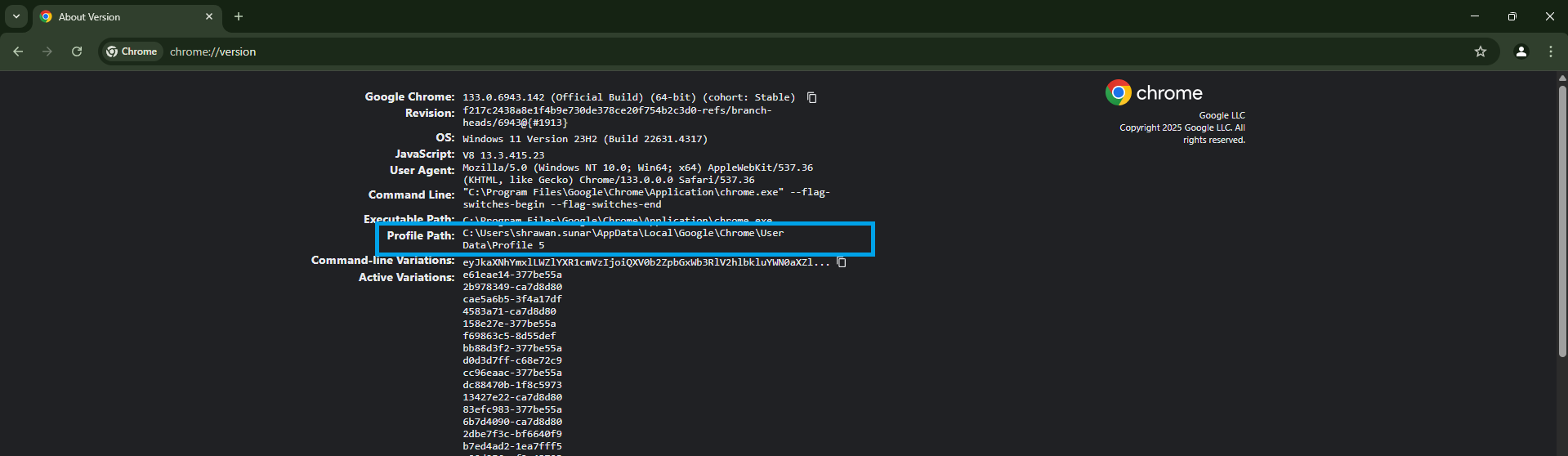
- Open Chrome and enter the following in the address bar:
chrome://version/- Copy the Profile Path (but exclude “Default” or “Profile X”).
- Your PROFILE_NAME is the last part of the path (e.g., “Default” or “Profile 1”)
Step 3: Run the Script
Once you’ve modified the configuration, you’re ready to run the script. Navigate to the directory where the linkedin_resume_downloader.py file is located, and run the script using:
python linkedin_resume_downloader.py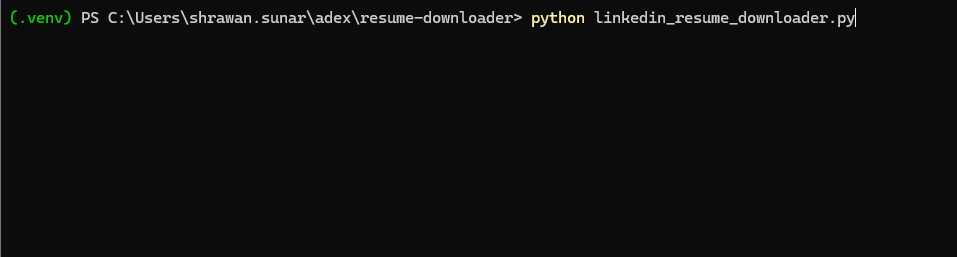
Monitor the Script in Action
After executing the script, you will notice the following:
- Chrome Opens Automatically: The script will automatically launch Chrome, navigate to the LinkedIn job page, and start downloading resumes one by one.
- Progress Updates: You will see updates in the terminal, indicating the pages being scraped and resumes being downloaded.

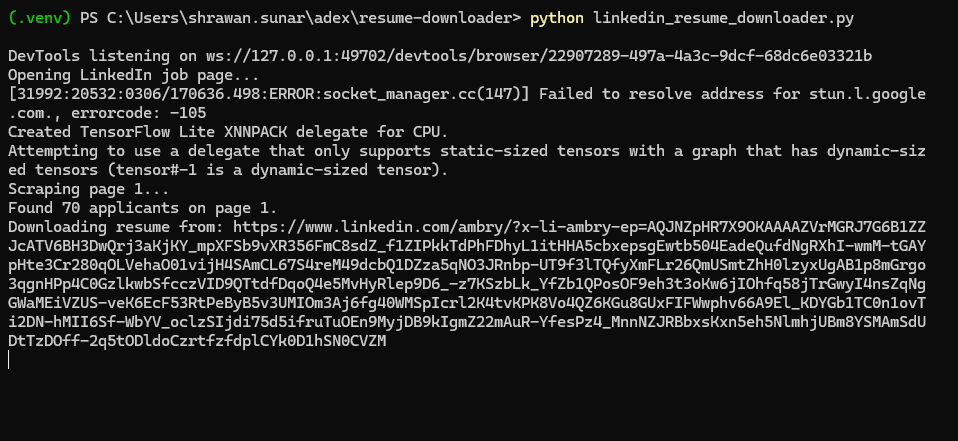
Once the process is complete, all resumes will be downloaded into the folder you specified earlier.
Conclusion:
This Python-powered automation script removes the burden of manually downloading resumes from LinkedIn. It’s a simple yet powerful solution for recruiters facing the overwhelming task of sorting through hundreds of applications.
By automating resume downloads, you can save hours of repetitive work, letting you focus on what truly matters: hiring the right candidates.
If you found this guide helpful, consider sharing it with colleagues or peers in your recruitment network to enhance productivity across your team.














